
Go to the Exchange from the Menu Bar at the top of the Homepage.

Select the pair to be traded from the left side of the exchange display and click on it:
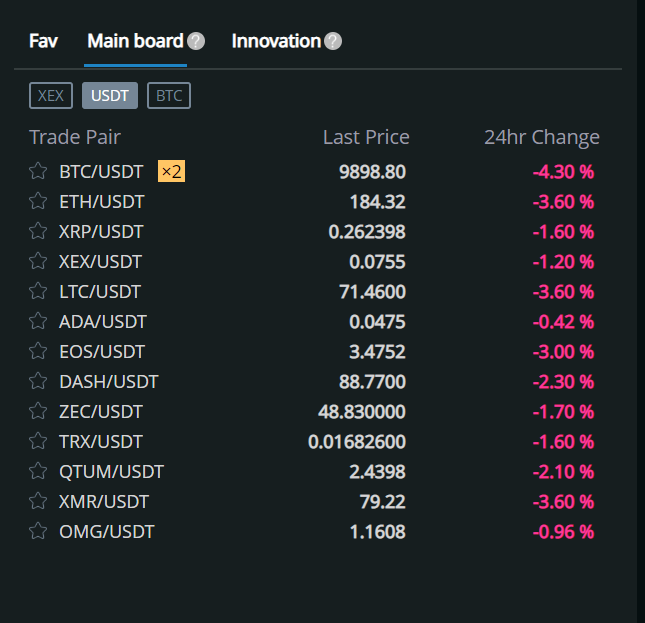
All trading pairs are divided into the following three sections:
- Favorites
- Main Board
- Innovation Board
The specific differences between the three areas are as follows:
| Section | Trading Pair | Trading Fee | Can Mine? |
| Main Board | Common Currency Pairs | 0.1% for buys/sells |
Y |
| Innovation Board | Minor Currency Pairs | 0.2% (charged for sells) |
Y |
| Favorites | Save your Favorite Trade Pairs | none | N |
※ pairs with CROSS exchange's Mining Coin, XEX, have no transaction fees
※ Innovation Board currency pairs have more risk because they are not common cryptocurrencies. Please take extra caution when trading these pairs.
Start Trading
All trading pairs have three trading methods. Please select the desired transaction method and switch.
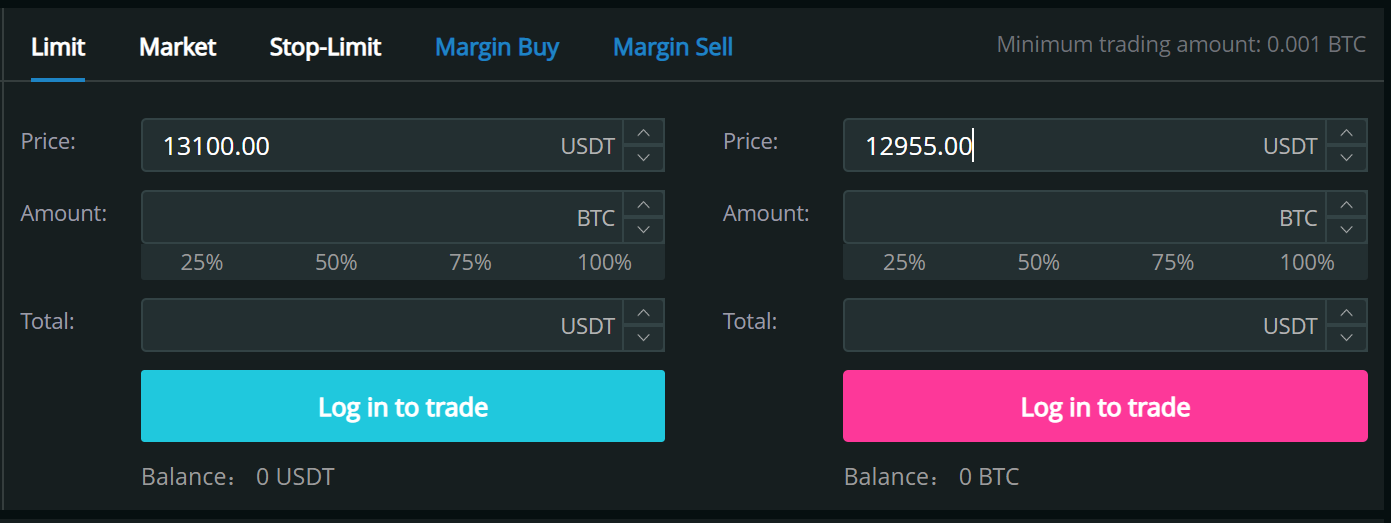
- Limit: Set the price you want to purchase or sell, and enter the price
- Market: Transactions purchased or sold at the current market price
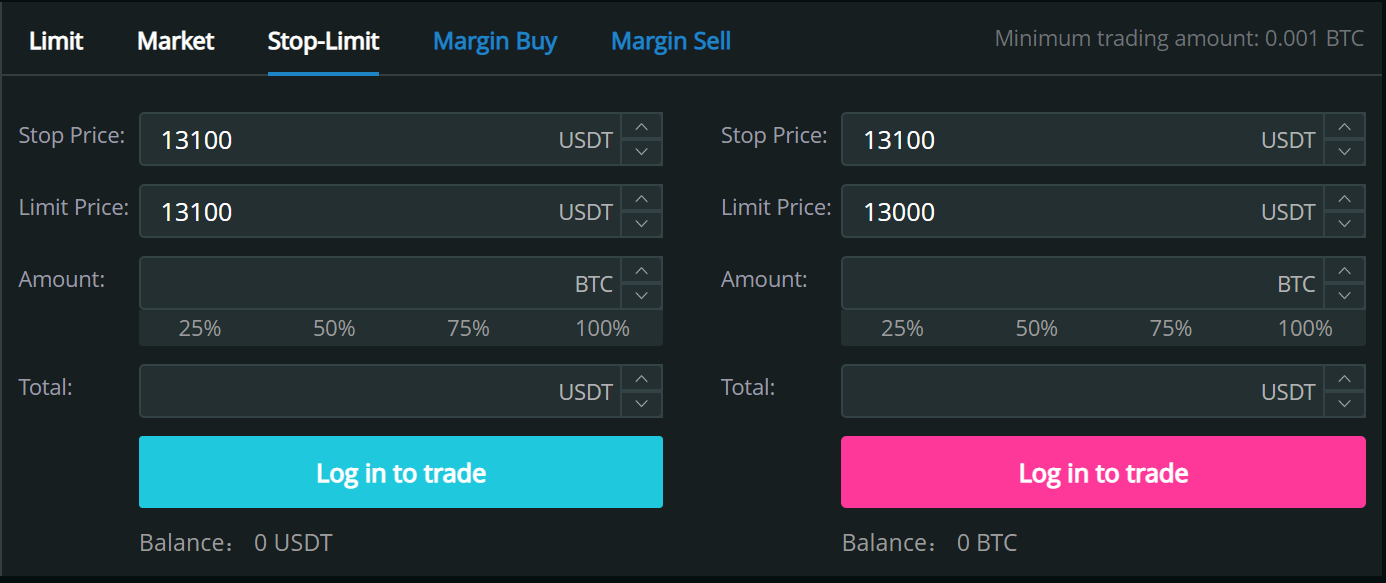
- Stop-Limit: Set the trigger price of a stop loss, and when the trigger price is met, the preset price of buying (or selling) will be filled.
- Margin Buy: <Details coming soon!>
- Margin Sell: <Details coming soon!>
Limit Order
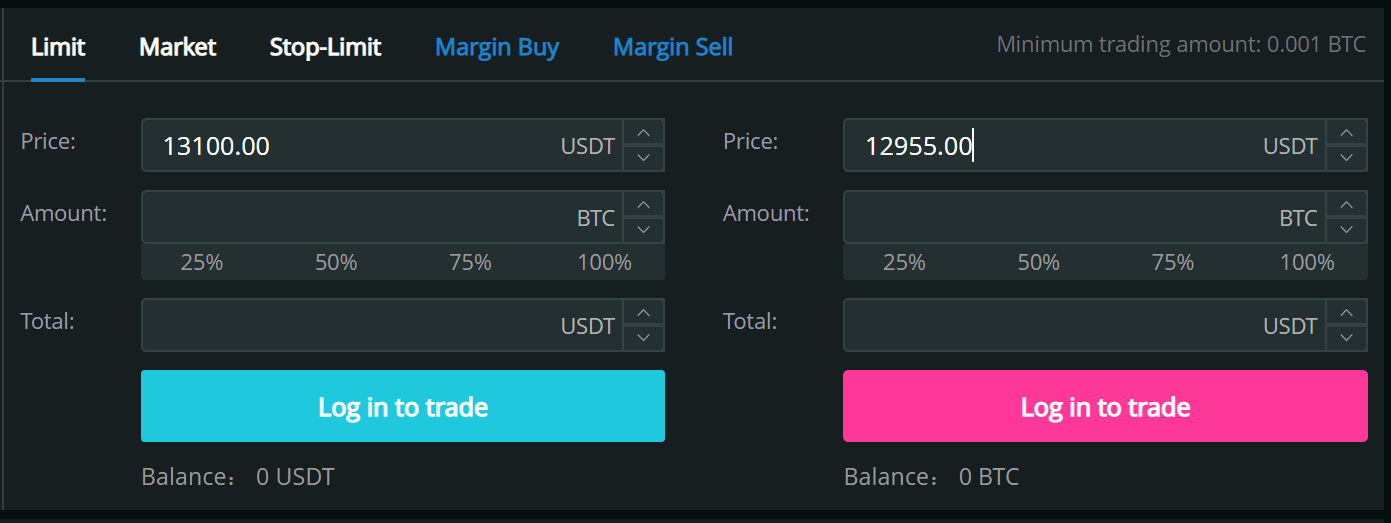
Set the limit trading price to purchase or sell. When the set price reaches the market price, the order will be filled.
The default price is the most recently traded market price.
If you choose "25%" here, ETH will be purchased with 25% of your BTC balance.
Market Order
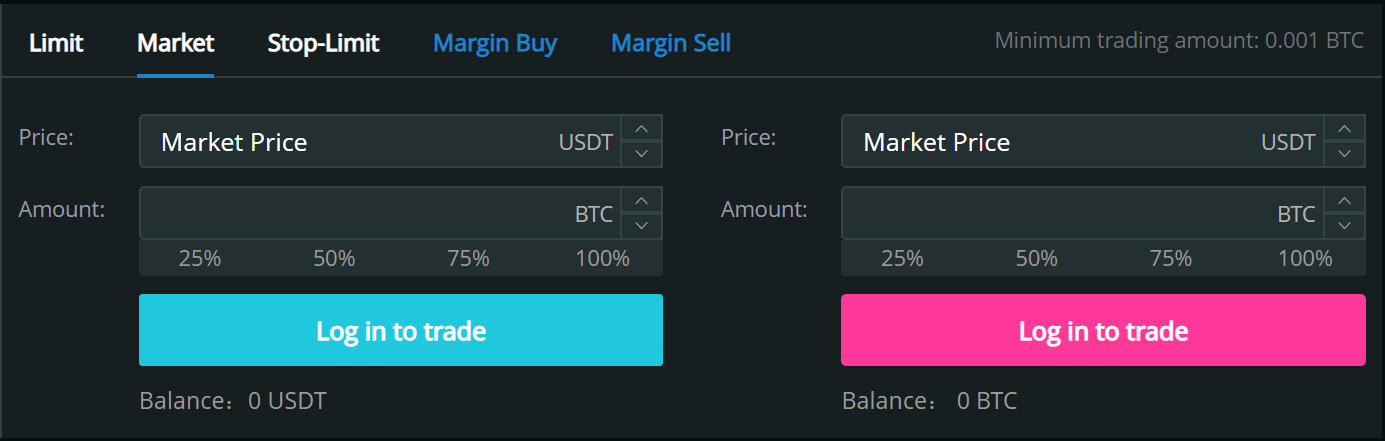
The price to buy (or sell) cannot be set, but orders are traded quickly at the best prices available based on the current market offerings.
Stop-Limit Orders
Stop-Limit Orders consists of two prices, a stop price and a limit price. When a transaction occurs at a stop price or a limit price, a contact is made at a price above the specified price.
Confirm Order
When an order is completed, details are displayed in the "current order" on the transaction screen.

Current Orders
Orders that have not yet been executed (or only partially executed) will be displayed in "Current Orders".
You can check the basic information of the applicable order and "cancel" them.

Order History
All transactions such as transactions and cancellations are displayed in the "Order History" list. "Order History" is only confirmation as the contents of the order cannot be changed.

On the trade screen, only the latest order history is displayed. If you want to see all order history, please navigate to "Order History" in your account.
Trading History
Only completed orders are displayed. On the trading floor, recent trade history is displayed. To check all the full history, you can confirm it with "Trade History" in your account.
